

All your business documents in one place
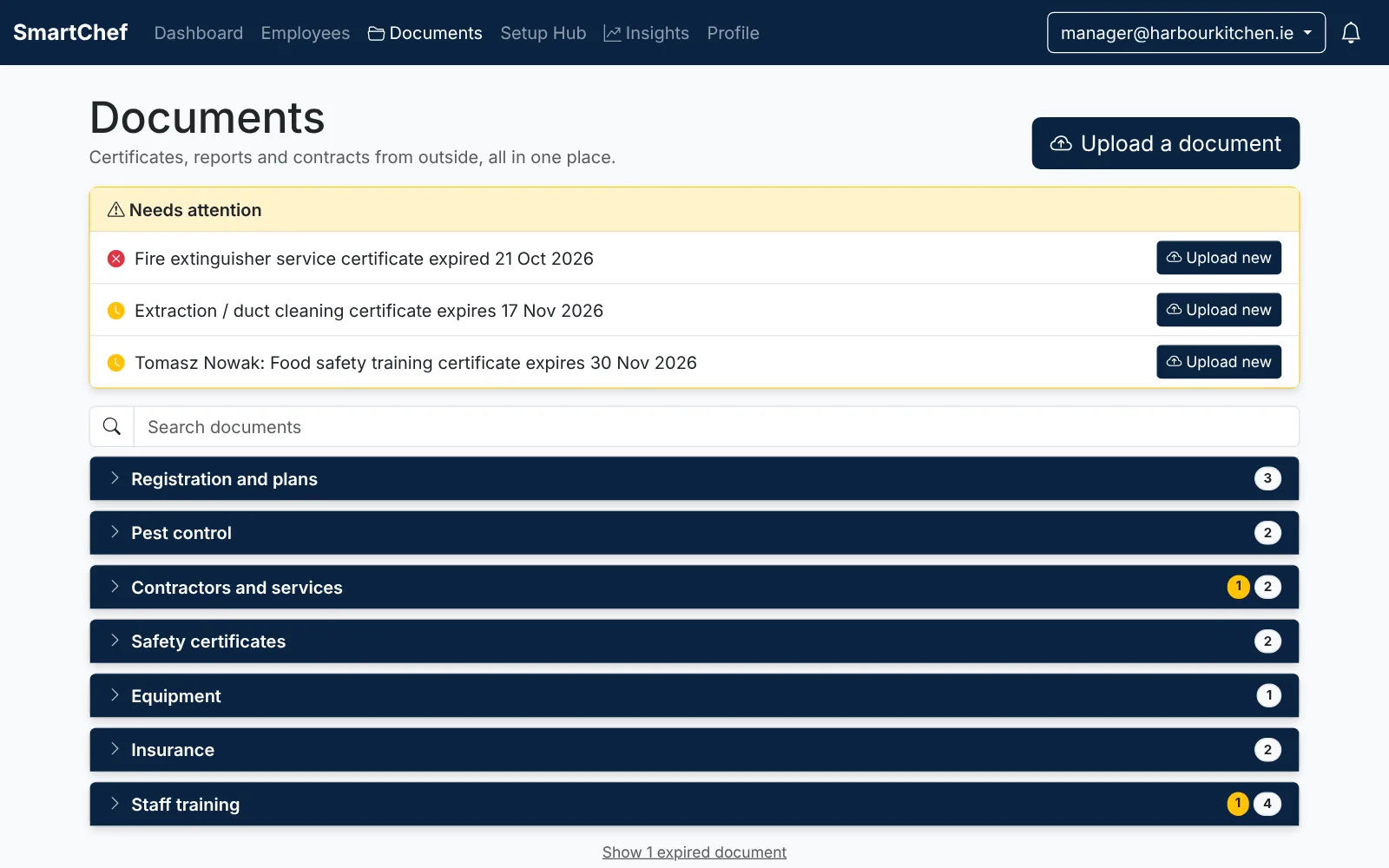
Pest control reports, insurance, gas and fire certificates, staff training certificates and anything else you need to keep. Take a photo or upload a file, and SmartChef keeps it safe, sorted and ready whenever you need it, whether that's for the EHO, your insurer or yourself. We'll email you 30 days before anything expires, so you have plenty of notice.
Sample data
Where did we put that certificate?
Most kitchens keep their paperwork in a folder in the office, an email inbox and somebody's phone. When the EHO calls in, or the insurance company asks for something, finding the latest pest control report or the gas certificate can take longer than it should. And nobody notices that the fire extinguisher service ran out last month until somebody asks for it.
Documents gives you one place in SmartChef for all of it. Everything is sorted for you, you can find any document in seconds, and SmartChef keeps an eye on the expiry dates so you don't have to.
How Documents works
Screens below show sample data.
Take a photo and we fill in the details
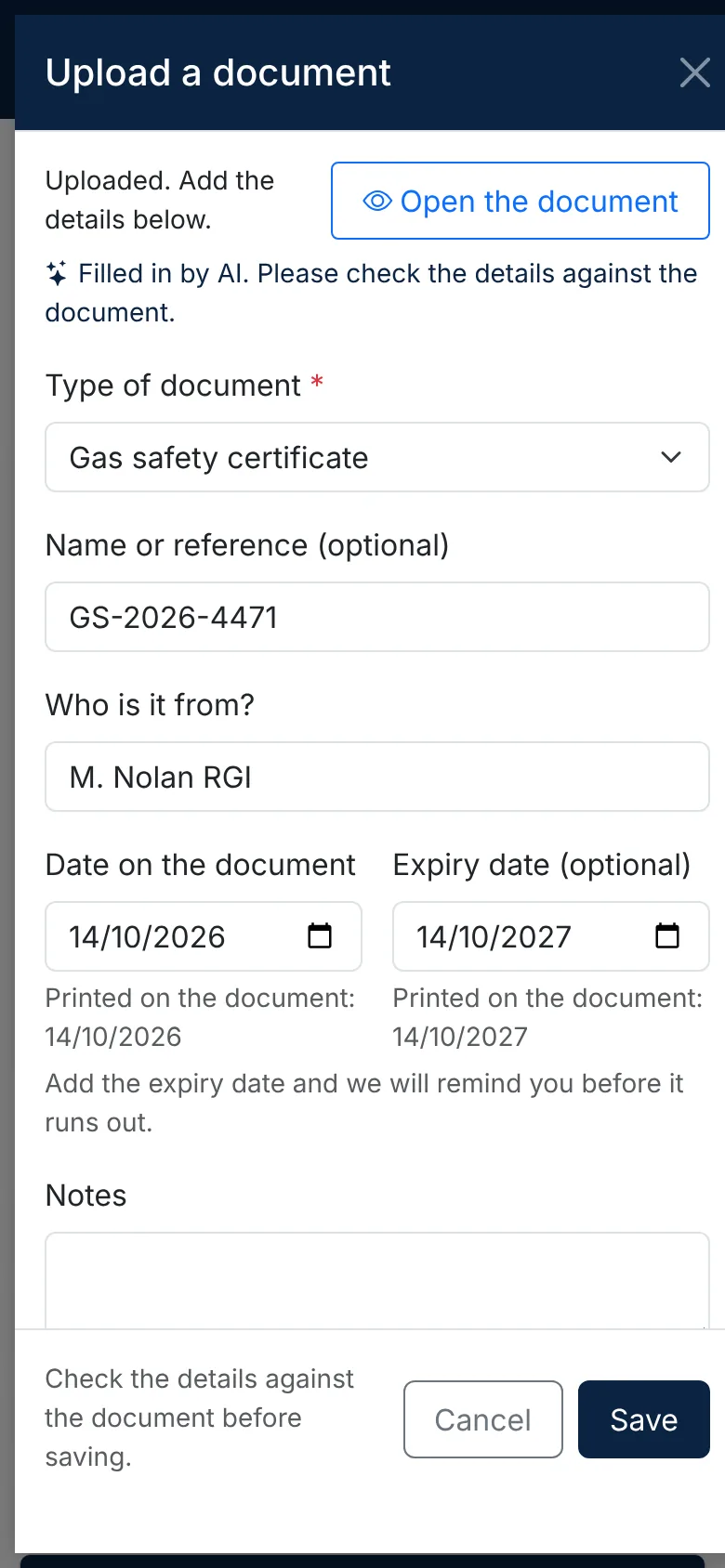
Take a photo of each page with your phone, or choose a PDF or photo you already have. SmartChef reads the document and fills in what it can, like the type of document, who it is from and the dates on it. You check the details against the document and save.
- Several pages are put together into one PDF
- The dates are shown exactly as printed, so they are easy to check
- Works with PDFs, photos and iPhone photos
The AI gets almost everything right, but it can occasionally slip up, so we'd encourage a quick check before you save.
Sorted for you, with what needs doing at the top
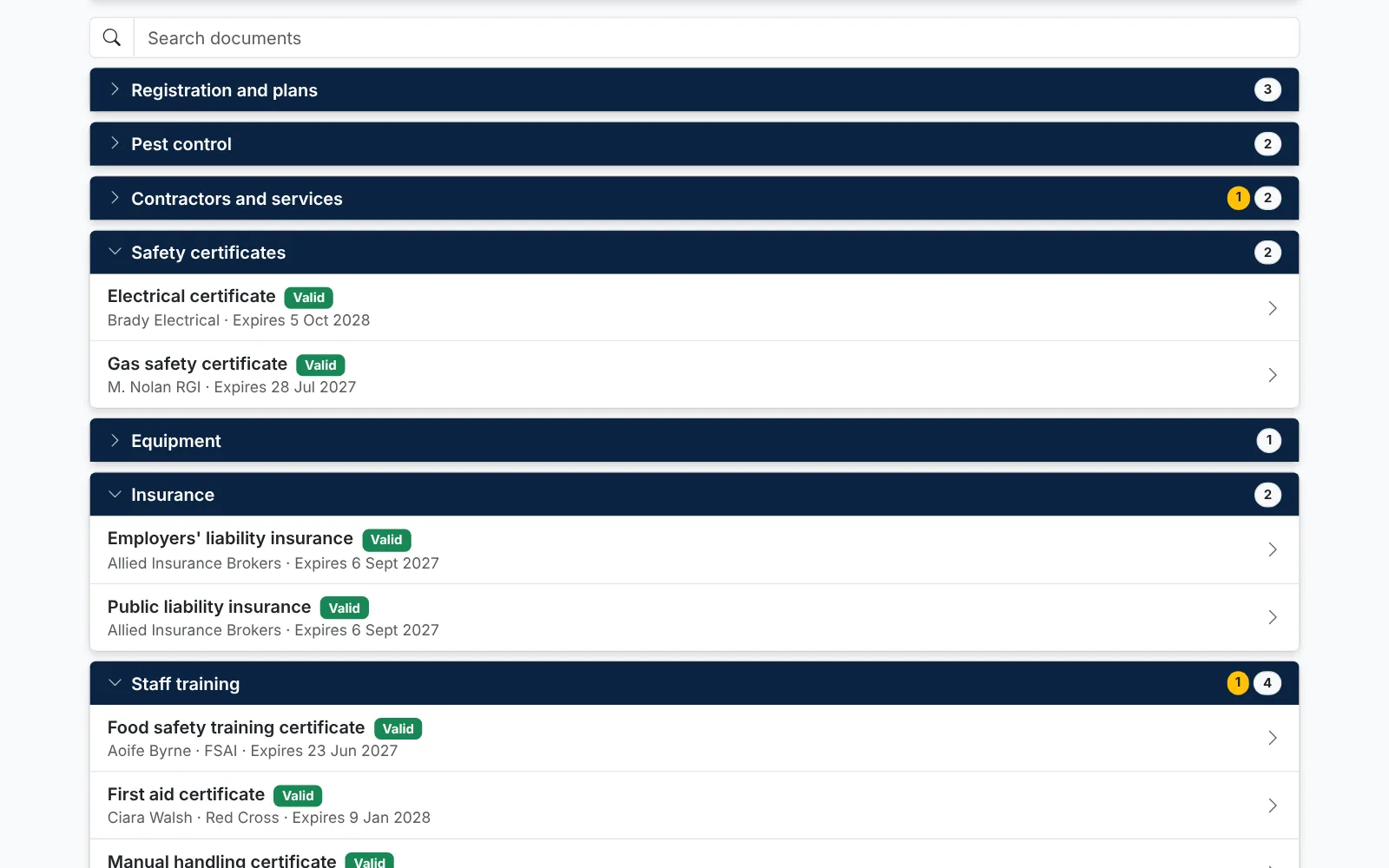
Documents are sorted into sections like pest control, safety certificates, insurance and staff training, so the one you want is always easy to find. Anything that has expired, or is due to expire in the next 30 days, is shown at the top of the page with a button to upload the new one.
- Search by name, company or person
- Each document is marked valid, due soon or expired
- Older copies are kept, so nothing is lost
Ready when the inspector calls
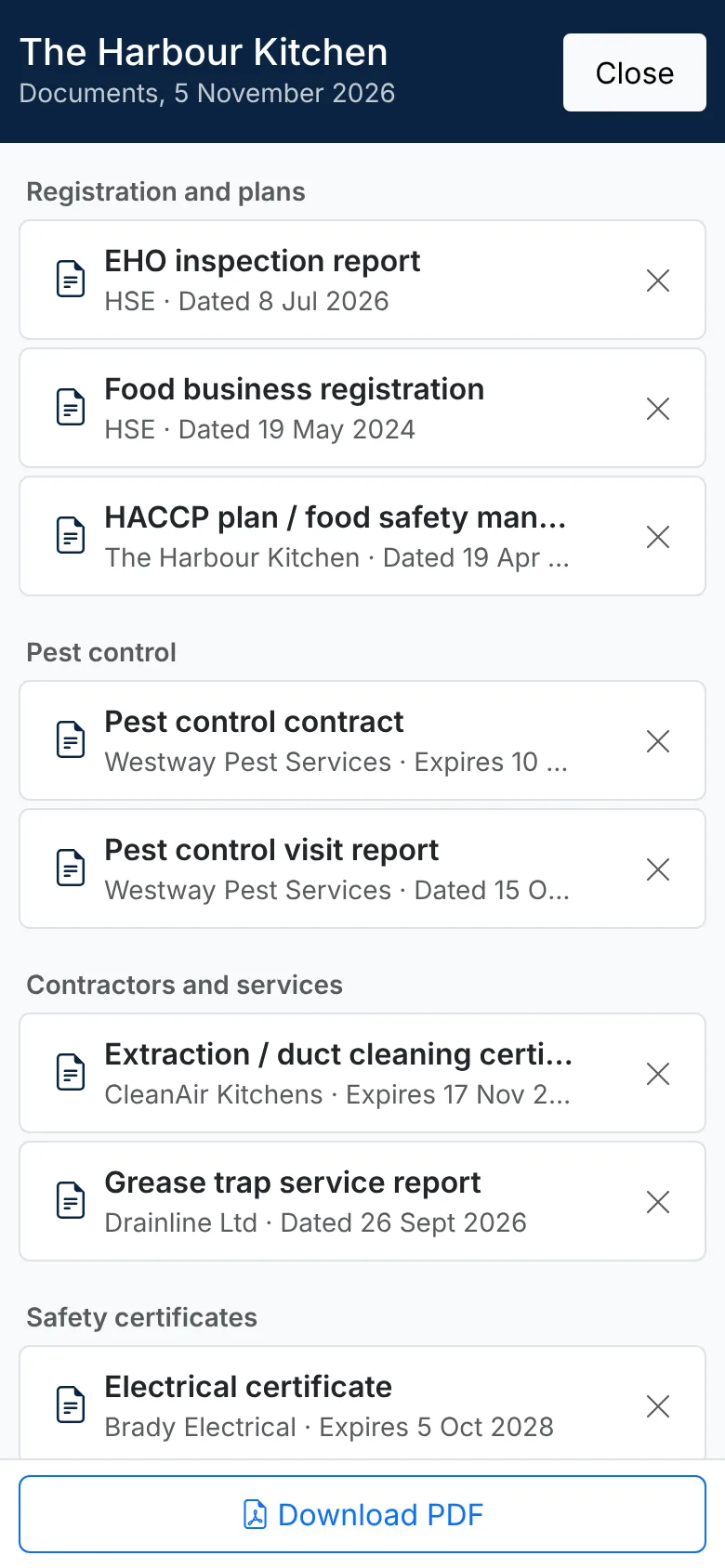
Tap For the inspector and you get one clean screen with every document that is in date. Hand over your phone or tablet, or download everything as a single PDF with a list of the documents at the front.
- Open any document with one tap
- Hide any you would rather not show
- One PDF to email or print
Photos on your phone, everything else on a computer
Documents works on both, but each is better at different things.
Use your phone to take photos
When a paper certificate or report arrives, take a photo of each page there and then. It's the quickest way to get it into SmartChef before it goes missing.
Use a computer for everything else
Uploading files from your email, looking through your documents, checking what's due and getting ready for an inspection are all much easier on a PC or laptop. That's where we'd recommend you manage them.
The details that make it easy
Reminders by email
We email you 30 days before a document expires, so you have plenty of notice. We remind you again on the day, and once more a week later if it still hasn't been replaced.
Staff certificates too
Keep each person's training certificates with their name on them. They show on the staff profile as well, and the ones you already have in SmartChef are already there.
Find anything in seconds
Search by the type of document, the company it's from or the person it belongs to, and it's there.
Anything you need to keep
The common document types are set up for you, from your food business registration to your employers' liability insurance, and there is an Other option for everything else.
Works with the files you have
Upload PDFs, JPG and PNG photos or iPhone photos, up to 20MB each. Several photos of one document are put together into one PDF.
Nothing gets lost
When you upload a new certificate, the old one is kept too. You can show the expired ones whenever you need them.
How to get started
Documents is already in your SmartChef menu if you are signed in as an admin or manager.
1. Go to Documents
Open SmartChef and choose Documents from the menu.
2. Upload a document
Tap Upload a document, then take a photo of each page or choose a file. Use your phone for photos.
3. Check and save
Check the details we filled in against the document, change anything that is not quite right, and save.
Who can see your documents
Documents is only shown to people who sign in with an admin or manager login. Staff logins don't see it at all.
One thing worth knowing: if everyone in your kitchen signs in with the same login, and that login is an admin or manager, they'll all be able to see your documents. It's worth a quick look at who signs in with what, and giving staff their own logins if they don't need to see things like your insurance.
How to give your team their own logins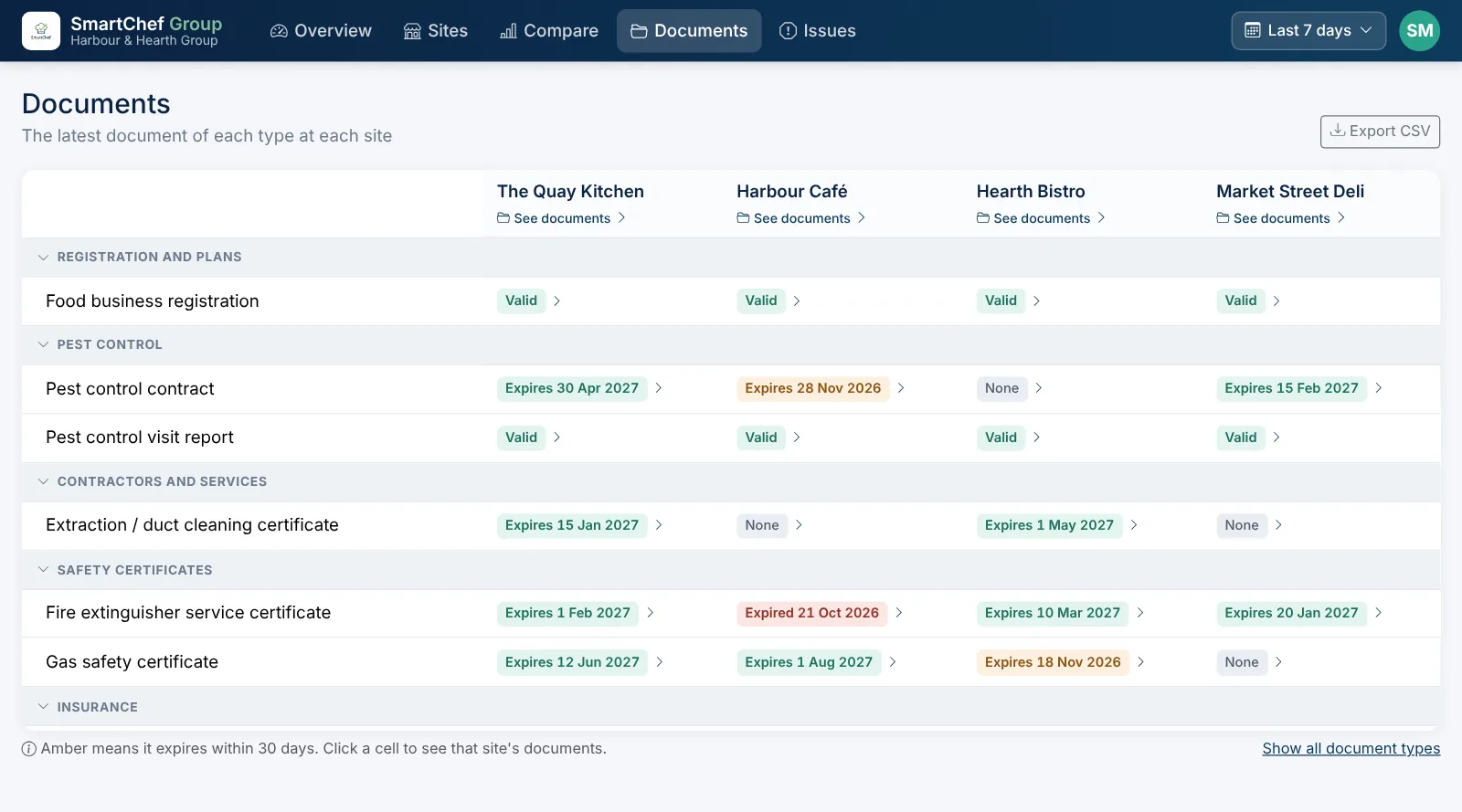
More than one site?
If you use SmartChef Group, the new Documents page lines up every site side by side. You can see straight away which sites have an up to date public liability certificate, which are due for renewal and which haven't uploaded one at all.
- Every document type, every site, on one screen
- Staff certificates for each site, with who is covered
- A Documents tab on each site, and expiring documents in the Monday summary
It's in beta, and we'd love your feedback
Documents uses AI to read your documents, and kitchens deal with a huge variety of them. Everything works and your documents are saved as normal, but we'd like to see plenty more real documents go through it before we call it finished.
So please give it a go, and if something doesn't look right, doesn't work the way you'd expect, or there's a document type you'd like us to add, let us know. It all helps.
Send us your feedbackFrequently asked questions
Get your documents sorted
Already using SmartChef? Documents is waiting for you in the menu. New to SmartChef? Try the demo and see everything it does.